- A+
Introduction
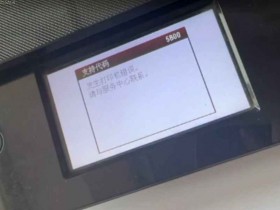
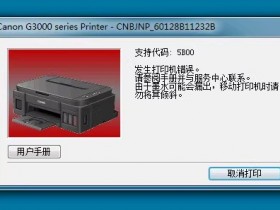
As a printer user, you might have encountered errors or issues with your device. One common problem is when the printer stops working or printing correctly. In such a scenario, resetting the printer to its default settings can help resolve the issue. This article will guide you on how to reset Photo310 printer by clearing errors and restoring default settings.
Step 1: Turn off the Printer
The first step is to turn off your Photo310 printer. To do so, press the power button and hold it for a few seconds until the printer shuts down completely.
Step 2: Disconnect the Power Cord
After turning off the printer, you need to disconnect the power cord from the power outlet. Make sure that the printer is not connected to any other device or power source.
Step 3: Wait for a Few Minutes
After disconnecting the power cord, you need to wait for a few minutes before proceeding to the next step. This will allow the printer's internal components to reset and cool down.
Step 4: Press and Hold the Resume Button
Next, press and hold the Resume button on the printer. While still holding the button, connect the power cord back to the power outlet. Continue holding the Resume button until the printer's power button starts flashing.
Step 5: Release the Resume Button
Once you see the power button flashing, release the Resume button. This indicates that the printer's internal memory has been reset, and the default settings have been restored.
Step 6: Test the Printer
After resetting the Photo310 printer, you need to test if it is working correctly. Turn on the printer and try printing a test page. If the printer prints correctly, it means that the reset was successful, and you can continue using the printer as usual.
Conclusion
In conclusion, resetting your Photo310 printer can help resolve various errors and issues. The process is simple and only requires a few steps. By following the steps outlined above, you can easily reset your Photo310 printer and restore its default settings. If you encounter any problems or need further assistance, do not hesitate to contact your printer's manufacturer or a qualified technician for support.